

Overview
The Dropbox Backup feature of Backuply allows you to store your website files and databases securely in your personal or business Dropbox cloud storage for off-site redundancy and disaster recovery.
This option is available since Backuply v1.3.0
No server credentials shared. No local storage waste. Secure OAuth2 authentication.
Everything is automated and fully under your control.
Why Dropbox Backup?
Storing backups off-site is a critical step in security. Storing backups on Dropbox helps you to:
- Protect against local server data loss or storage corruption
- Access backup files anytime from the web or any device
- Save local disk space by sending backup archives directly to the cloud
- Avoid security exposure since no server passwords or keys are exposed
How it works ?
- You authorize the Dropbox backup destination in Backuply settings
- Backuply redirects you to Dropbox to safely log in and authorize the app
- An OAuth2 access and refresh token is returned to Backuply to manage access
- Backuply creates a folder in your Dropbox (App folder) to store the backups
- During backups, files are compressed and uploaded directly via Dropbox API streams
- Backups are retained according to your automated retention schedule settings
Procedure
- Navigate to Add Backuply server
- Select type as Dropbox.
- Click Authorize, log in to your Dropbox account, and copy the authorization code
- Paste the code into the Backuply settings and click Add Backup Server
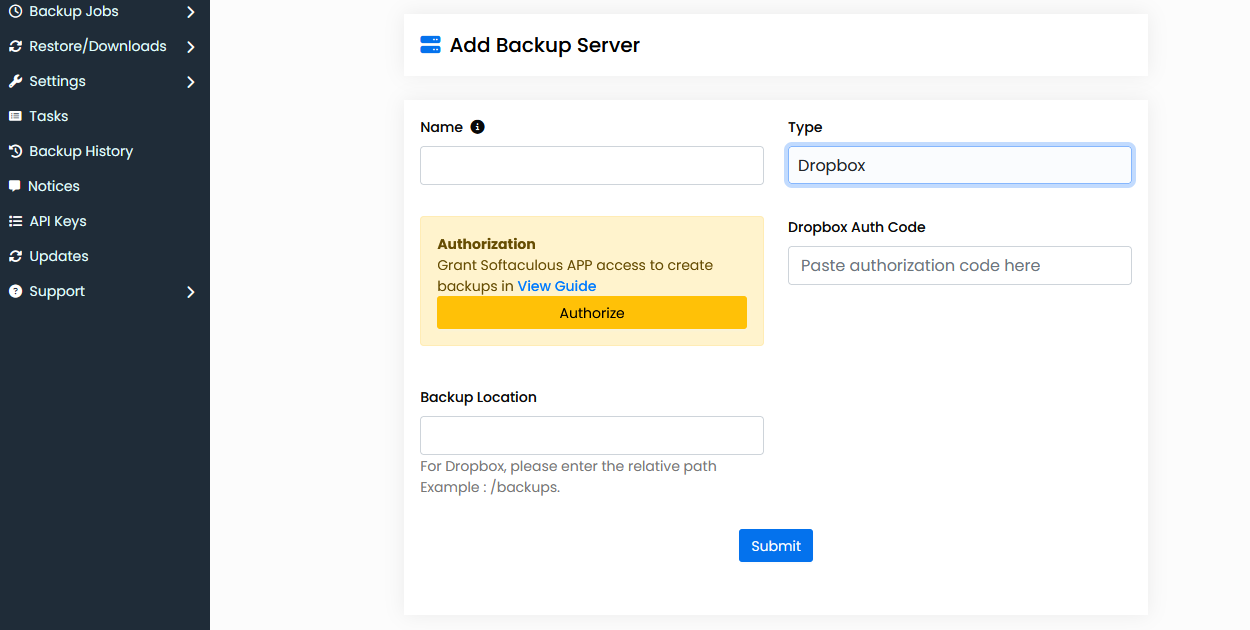
The Dropbox backup destination becomes active immediately after saving.
Restoring from Dropbox
Restoring a backup from your Dropbox storage is simple and handled automatically:
- Open the Restore section in Backuply admin page
- Select the Dropbox server to load the backup points list
- Select your desired restore point and click Restore
Ensure that your server has sufficient free disk space to temporarily hold the downloaded backup archive during the restoration process.