This guide will help you setup pCloud in Backuply.
-
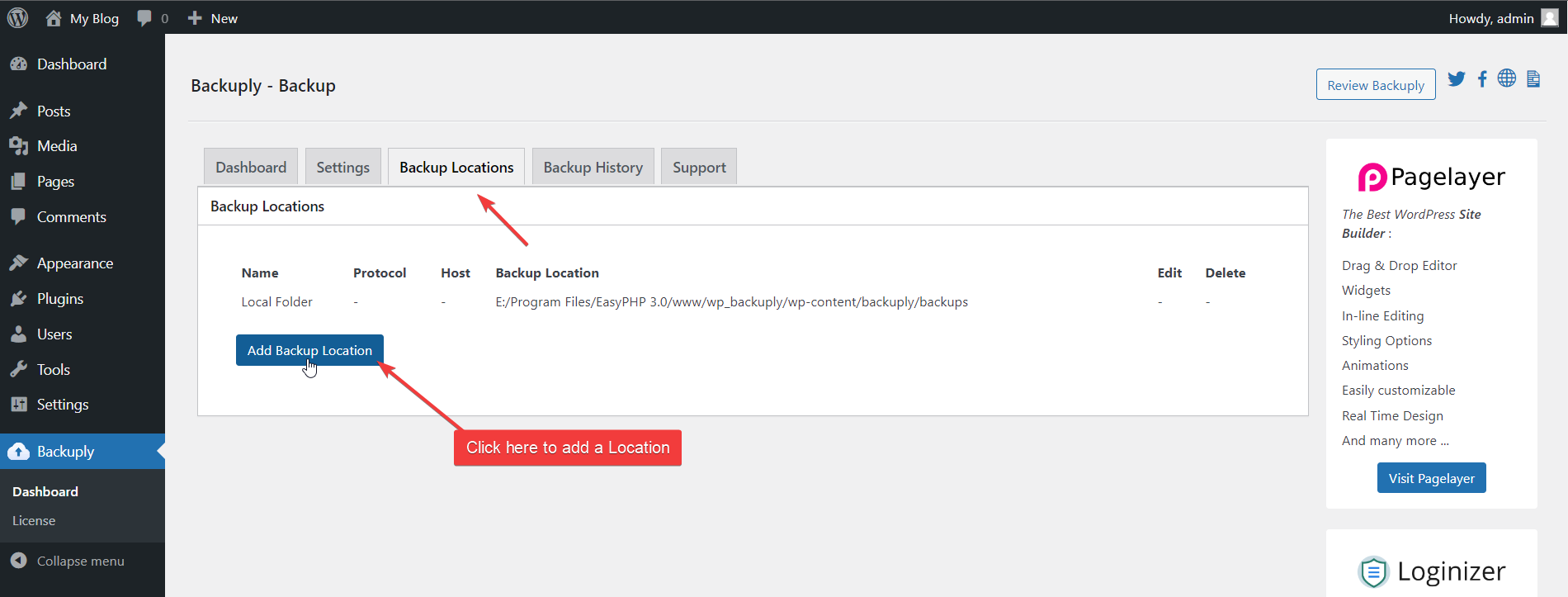
On your WordPress dashboard go to Backuply -> Backup Locations.
-
Look for Add Backup Location button and click it a modal will appear.
-
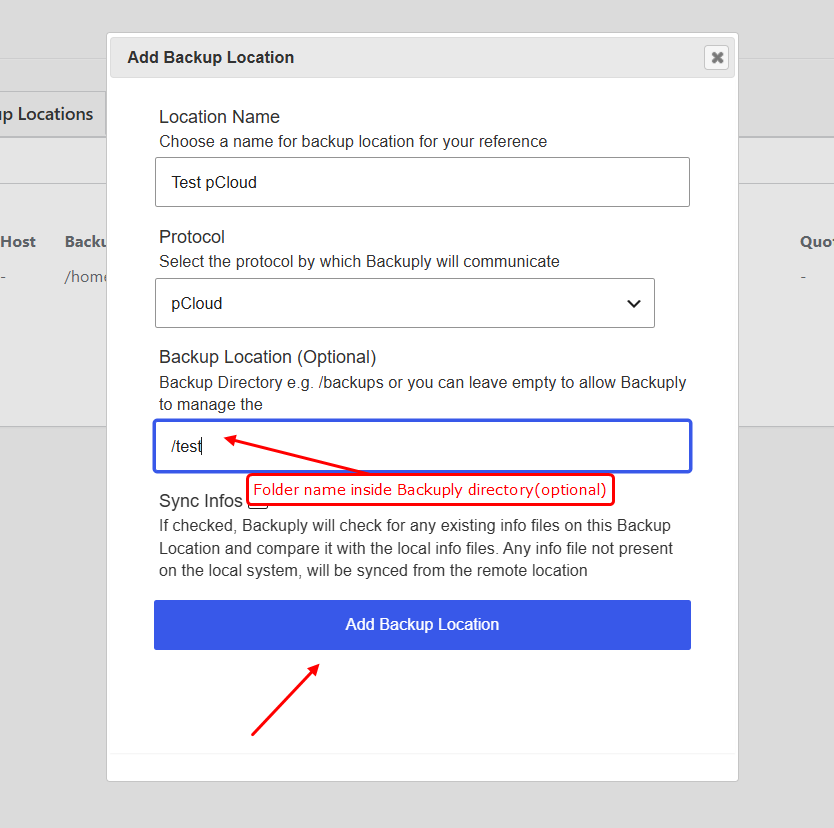
In the popup that will appear. There is a form in that set the Location Name, to anything you like the location as preview name
-
The the Protocol field select pCloud
-
In the Backup location field which is optional, set the name of the folder you want backup inside, else it will still be inside Backuply folder.
-
Once the form is filled, click on Add backup Location.
-
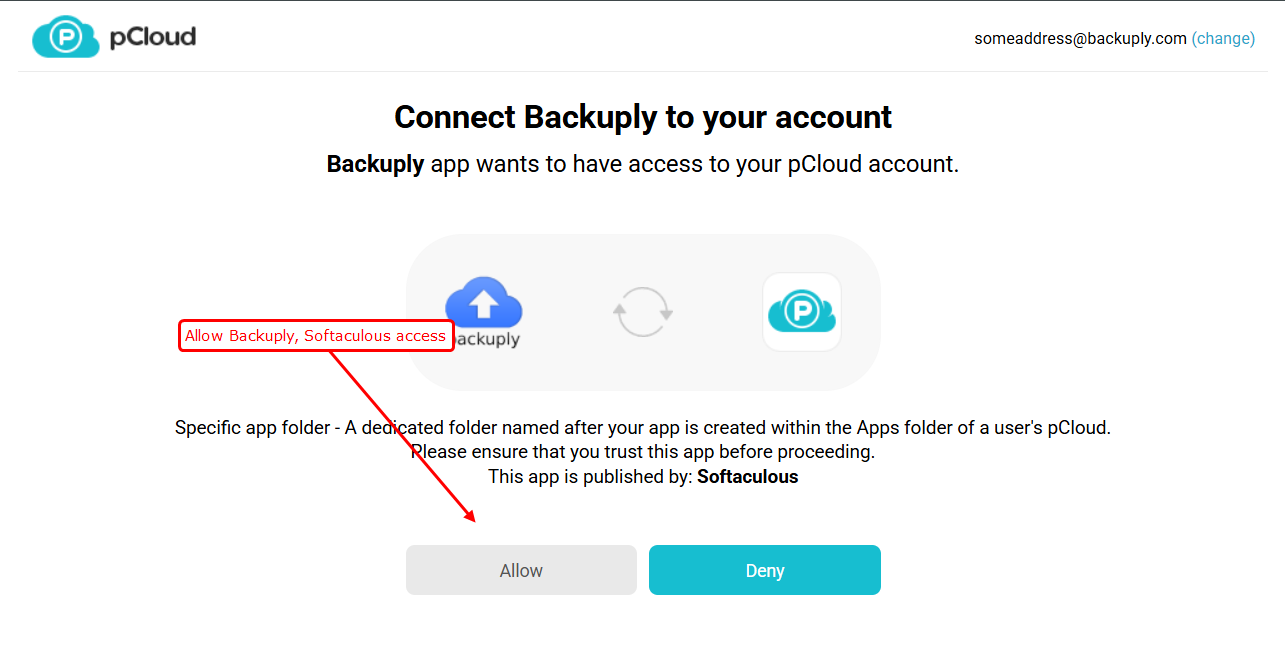
You will be redirected to a pCloud Authentication page(log in to pCloud), you will see an option to allow or Denay Backuply, Softaculous, Allow it
-
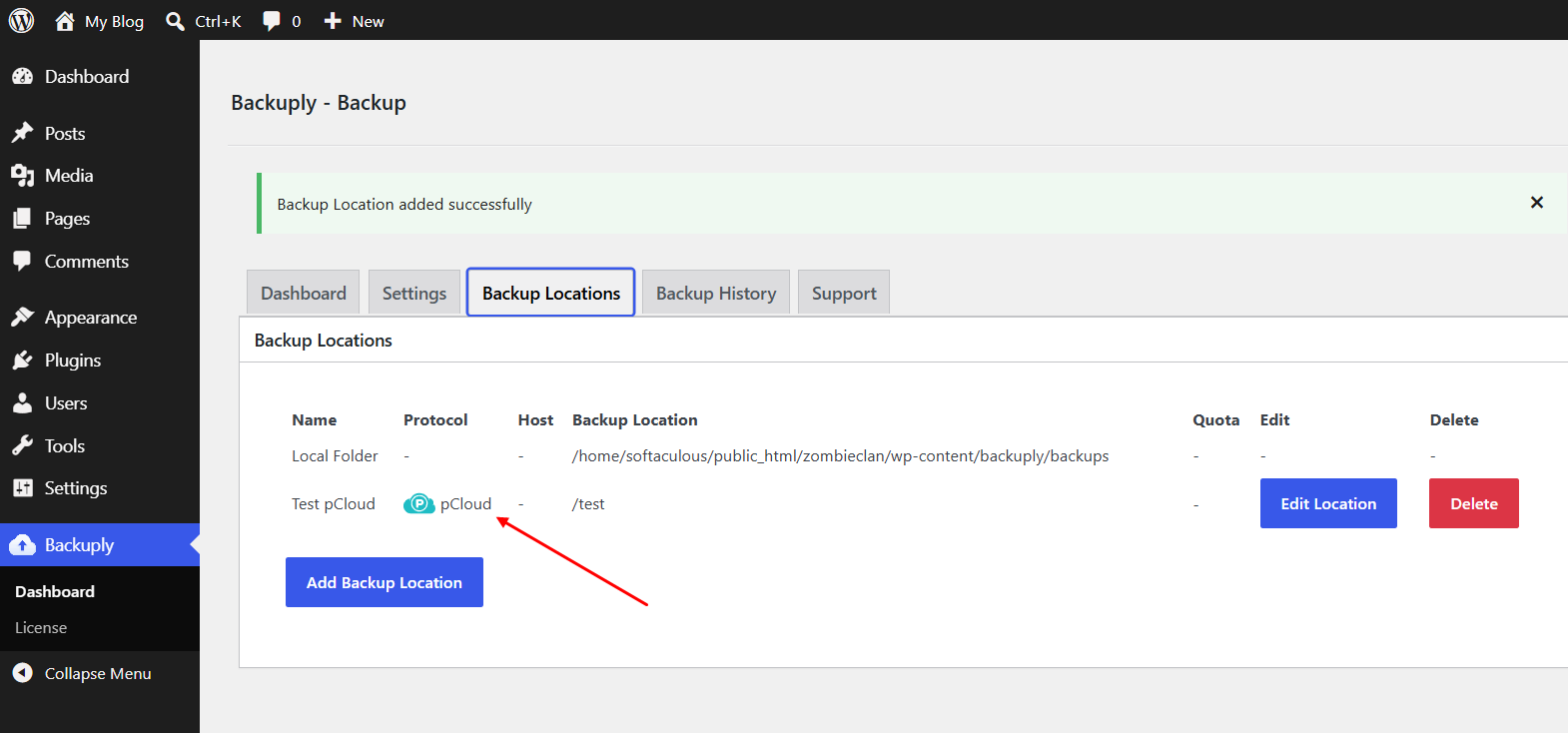
You will be redirected back to plugin, and the location would be added.
If you face any issue adding pCloud you can reach out to us at support@backuply.com